Quickstart: Durable Agent
This quickstart shows how to run a durable agent built using Dapr Agents and Catalyst Cloud. The agent acts as a travel assistant that can search for flights and hotels, maintain conversation memory, and persist execution state across restarts.
You will learn how to:
- Provision a Catalyst project and related resources using the Diagrid CLI.
- Run a durable AI agent with tool-calling capabilities using Dapr Agents with Catalyst Cloud
- Monitor parallel tool execution in the Catalyst web console
1. Prerequisites
Before you proceed, ensure you have the following prerequisites installed:
2. Log in to Catalyst
Authenticate to Diagrid Catalyst using the following command:
diagrid login
This command opens a new browser window where you log into Catalyst. Once logged in, you'll be shown a confirmation code (matching the code in your terminal) that you need to confirm.
Confirm your user details are correct using the following command:
diagrid whoami
The expected output contains the name of the organization, your user name, and the Catalyst API endpoint.
3. Clone Quickstart Code
Clone the quickstart code from GitHub:
git clone https://github.com/diagridio/catalyst-quickstarts.git
Navigate to the quickstart directory:
- macOS/Linux
- Windows
cd catalyst-quickstarts/durable-agent/python
cd catalyst-quickstarts\durable-agent\python
4. Configure OpenAI API Key
Add your OpenAI API key to resources/agent-llm-provider.yaml:
metadata:
  - name: key
    value: "YOUR_OPENAI_API_KEY"
Optionally, to use Anthropic instead of OpenAI, update resources/agent-llm-provider.yaml with:
apiVersion: dapr.io/v1alpha1
kind: Component
metadata:
  name: anthropic
spec:
  type: conversation.anthropic
  metadata:
  - name: key
    value: "YOUR_ANTHROPIC_API_KEY"
  - name: model
    value: claude-3-5-sonnet-20240620
5. Install Dependencies
Create a virtual environment:
python -m venv .venv
Activate the virtual environment:
- macOS/Linux
- Windows
source .venv/bin/activate
.venv\Scripts\activate
Install dependencies:
pip install -r requirements.txt
6. Run with Catalyst Cloud
The diagrid dev run command creates your Catalyst Cloud project (if needed), provisions resources (App IDs, Components, managed state stores and pubsub), configures environment variables, and sets up the connection between your local environment and Catalyst Cloud.
diagrid dev run -f dev-python-durable-agent.yaml --project dev-python-durable-agent --approve
Wait for the following log output to confirm the agent is running before proceeding:
Uvicorn running on http://0.0.0.0:8001 (Press CTRL+C to quit)
== APP - travel-assistant-agent == Travel Assistant Agent is running
7. Interact with the Agent
Test the Durable Agent using the terminal or the REST Client extension with the test.rest file.
7.1 Example 1: Multi-city flights and hotels
Open a new terminal and trigger the agent via REST API:
- macOS/Linux
- Windows
curl -i -X POST http://localhost:8001/agent/run \
  -H "Content-Type: application/json" \
  -d '{"task": "Find me flights and hotels to London and Amsterdam"}'
Invoke-RestMethod -Method Post -Uri "http://localhost:8001/agent/run" -ContentType "application/json" -Body '{"task": "Find me flights and hotels to London and Amsterdam"}'
At a high-level, the agent will:
- Process your flight and hotels request
- Execute the
search_flightstool in parallel for both cities - Return flight options with pricing to the LLM and plan next steps
- Execute the
search_hotelstool in parallel for both cities - At every step, persist execution state and conversation history to Catalyst
- Return flight and hotel options
The response will include flight and hotel search results for both London and Amsterdam with pricing details.
7.2 Example 2: Single destination
The agent adapts its workflow based on your input. You can search for flights only, hotels only, or both. For example, search for a flight and a hotel to a single destination:
- macOS/Linux
- Windows
curl -i -X POST http://localhost:8001/agent/run \
  -H "Content-Type: application/json" \
  -d '{"task": "Find me flights and hotels to London"}'
Invoke-RestMethod -Method Post -Uri "http://localhost:8001/agent/run" -ContentType "application/json" -Body '{"task": "Find me flights and hotels to London"}'
8. View in the Catalyst web console
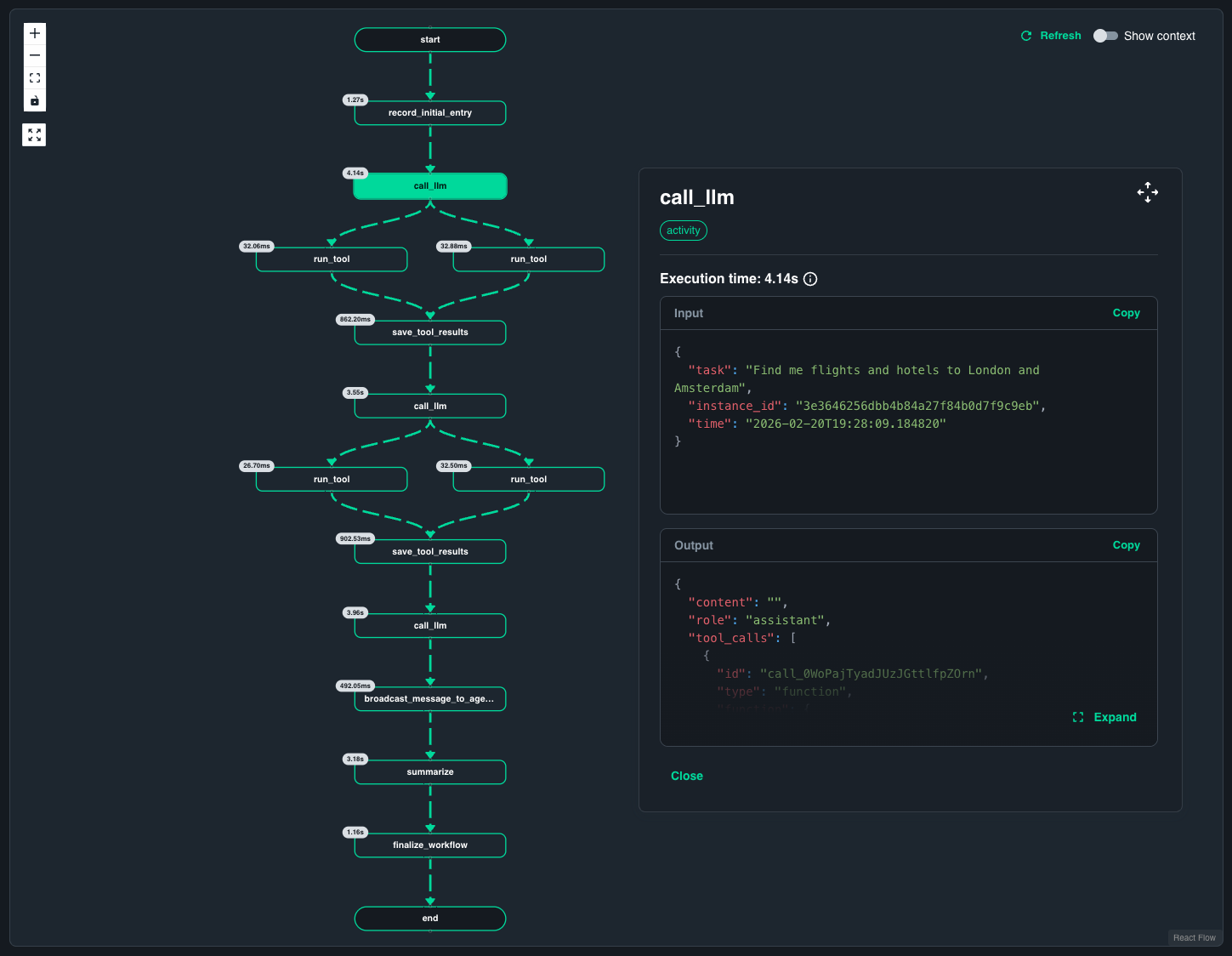
Open the Workflow viewer in the Catalyst Cloud web console and navigate to the Workflows section. Select the workflow instance that corresponds to your agent execution.
The Catalyst workflow visualizer shows each step the agent takes during execution. You can inspect every step with its inputs and outputs — including inputs to the LLM, generated responses, and tool call parameters — making it easy to understand and debug agent behavior.
9. Clean Up
Stop the running application by pressing Ctrl+C in the terminal where diagrid dev run is running.
Delete the Catalyst Cloud project to clean up all provisioned resources:
diagrid project delete dev-python-durable-agent
Summary
In this quickstart, you:
- Ran a durable AI agent based on Dapr Agents and connected to Catalyst Cloud for agent durability
- Observed parallel tool execution and workflow visualization in the Catalyst web console
Next steps
- Explore the Dapr Agents Python SDK guide for more agent development patterns.
- Learn about AI Agent use cases and how Catalyst supports agentic workflows.
- Try the Multi-Agent Workflow quickstart to orchestrate multiple cooperating agents.
- Browse available conversation components for different LLM providers.