Manage Catalyst Projects
A Catalyst project is the top-level container that groups workloads, components, configurations, subscriptions, and managed infrastructure. Each project exposes its own HTTP and gRPC Dapr endpoints, ingress and egress addresses, and role assignments — making projects the main unit of isolation between environments, teams, or applications in Catalyst.
Every operation on this page — creating projects, selecting them, updating managed services, and deleting them — can also be done from the Catalyst Web UI at catalyst.diagrid.io.
📦Logical container
A project groups all Dapr resources (workloads, components, subscriptions, configurations) and provides shared endpoints for the workloads inside it.
🔒Isolation boundary
Projects have their own network addresses, role scopes, and optionally managed Pub/Sub, Key/Value, and Workflow stores.
When to create a new project
Use a project to draw an isolation boundary. Common patterns:
- Per-environment — separate
dev,staging, andprodprojects so resources, components, and API keys never cross boundaries. - Per-team or per-business-unit — give each team its own project and scoped roles so they can only manage their own apps.
- Per-application — for workloads with stricter isolation requirements (regulated data, tenant-specific infrastructure, or dedicated resiliency policies).
A project lives inside a Region. On Catalyst Cloud the region is managed by Diagrid; on self-managed BYOC you can create and deploy your own regions.
Create a project
Use the Diagrid CLI to create a project:
diagrid product use catalyst

# Create a project in the organization's default region
diagrid project create my-project --wait

# Or target a specific region explicitly
diagrid project create my-project --region my-region --wait

# Create a project that opts into the managed Pub/Sub broker and KV store
diagrid project create my-dev-project \
  --deploy-managed-pubsub \
  --deploy-managed-kv \
  --wait
Without --region, projects are provisioned in the organization default region. On Catalyst Cloud the default is managed by Diagrid; on self-managed BYOC you set it yourself with diagrid region use — creating a region does not auto-set it.
See diagrid project create and diagrid product use for the full flag set.
A project can also be created in a region group instead of a single region. It is then placed in every member region and keeps one set of hostnames, so it survives the loss of a region without its applications changing anything. You make the choice once: a project belongs either to a group or to a region, and cannot be moved between them.
Managed Pub/Sub, Key/Value, and Workflow stores are hosted by Catalyst and available as backing infrastructure for development without provisioning your own. See Managed services.
Inspect a project
Every project exposes the network details your applications need to connect:
diagrid project get my-project
See diagrid project get for output formats. The output includes:
- HTTP endpoint and gRPC endpoint — the URLs your Dapr SDKs should point at.
- Ingress address — the public network address of the Catalyst Data Plane for this project.
- Egress address — the source IP address Catalyst uses when calling back into your applications. If your app lives behind a firewall, this is the IP you need to allow. Add it to your firewall, API gateway, or load balancer allowlists.
- Region — the region hosting the project.
- Managed services status — whether the managed Pub/Sub, KV, or workflow stores are enabled.
See the Connect to Catalyst guide for how these values are used.
Select the active project
Most Diagrid CLI commands operate on a currently selected project. Set it with:
# List all projects in the org
diagrid project list

# Select the active project for subsequent commands
diagrid project use my-project
See diagrid project list and diagrid project use.
You can also target a specific project per command with --project:
diagrid app list --project my-staging-project
Update a project
Update managed infrastructure or other project settings:
# Enable the managed workflow store on an existing project
diagrid project update my-project --enable-managed-workflow --wait
The managed Pub/Sub broker and key-value store are provisioned at creation time with --deploy-managed-pubsub and --deploy-managed-kv on diagrid project create; diagrid project update does not accept those flags.
See diagrid project update for the full flag set.
Duplicate a project
To stand up a copy of a project, for example a staging environment that matches production or the same project in another region, duplicate it. The new project gets its own name and, optionally, a different region or region group. Duplicating leaves the source project unchanged.
Duplication is available through the Catalyst control plane API only. There's no CLI command or console action for it yet. Start a copy with Duplicate a project, then follow it with Describe a project duplication.
The copy takes the source project's configuration: its managed services, agent infrastructure, app tunnel policy, global App ID settings, and labels. It then copies the project's contents:
- App IDs
- Components and their credentials
- Subscriptions and resiliency policies
- HTTP endpoints
- MCP servers and their access policies
- Agents
- Notification routing
Anything the platform generates is not copied, because the new project generates its own: API tokens, join tokens, live app tunnels, and the resources a copied agent or MCP server provisions for itself.
Duplication runs in two stages:
- The new project is created right away. Every rule for creating a project applies. The name must be free in your organization, your project limit must allow another project, and the target region must support everything the source project has enabled. If any of these fails, the request fails and nothing is created. For example, a project with the managed Pub/Sub broker can't be duplicated into a region group, because managed Pub/Sub is regional.
- Its resources are copied afterwards. The request returns as soon as the new project exists, before any resource is copied. Don't treat the new project as ready until the duplication's phase is
succeeded. The duplication moves throughpending,copying, and thensucceededorfailed, and it has the same name as the new project.
If any resource can't be reproduced, the whole duplication fails and the new project is deleted, so you're never left with a partial copy. The duplication's message says which resource failed and why.
Delete a project
Deleting a project tears down all apps, components, subscriptions, and managed infrastructure inside it. Make sure no workloads still depend on the project before deleting.
diagrid project delete my-project --wait
Scoping roles to a project
Catalyst supports both global and project-scoped roles. Use project-scoped roles to let a developer team manage only their own project without granting access to the entire organization:
# Editor role scoped to a single project
diagrid apikey create --name dev-team-key \
  --role cra.diagrid:editor:projects:my-dev-project \
  --duration 2592000
See diagrid apikey create for the full role syntax and examples.
See Manage Access for the full list of roles and API keys for scoping patterns.
Enable verifiable execution
Verifiable execution cryptographically signs every event in a workflow's history, giving you a tamper-evident record that can be independently verified. Because signing builds on the workload identity and mTLS that Catalyst provides by default, there is nothing to configure in your application code — you enable it on the project, and it applies to every workflow that runs there:
# Workflow history signing can only be enabled at project creation
diagrid project create payments --enable-workflow-history-signing --wait
Signing is a permanent commitment for the workflows created under the project: a signed workflow must always run on signing-enabled infrastructure, you cannot retroactively sign an existing unsigned workflow, and disabling signing would prevent already-signed histories from loading. The signing adds negligible CPU cost, though the extra signature and certificate data increases the storage each workflow step consumes.
See diagrid project create for the full flag set.
Configure the workflow state store
Signed workflow histories are persisted in the project's workflow state store, and you choose that store when you set the project up:
- Managed workflow store — a project created as a Development environment in the Catalyst console includes the managed Diagrid components; with the CLI, add
--enable-managed-workflow. Nothing else to configure; see Managed services. - Your own state store — a Non-development environment project includes no managed components: you register a transactional state store that you operate (Redis, PostgreSQL, or another supported store) as a component yourself, and the workflow engine persists signed histories there.
To bring your own store:
-
Create the project without the managed workflow store — in the console, select Non-development environment and turn on Workflow history signing; with the CLI, omit
--enable-managed-workflow: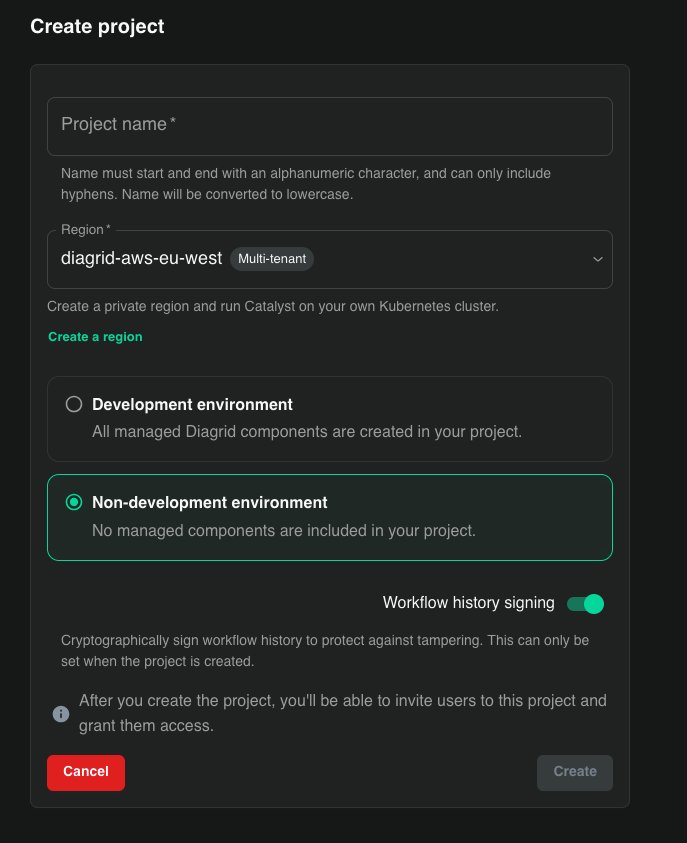 diagrid project create payments --enable-workflow-history-signing --wait
 -
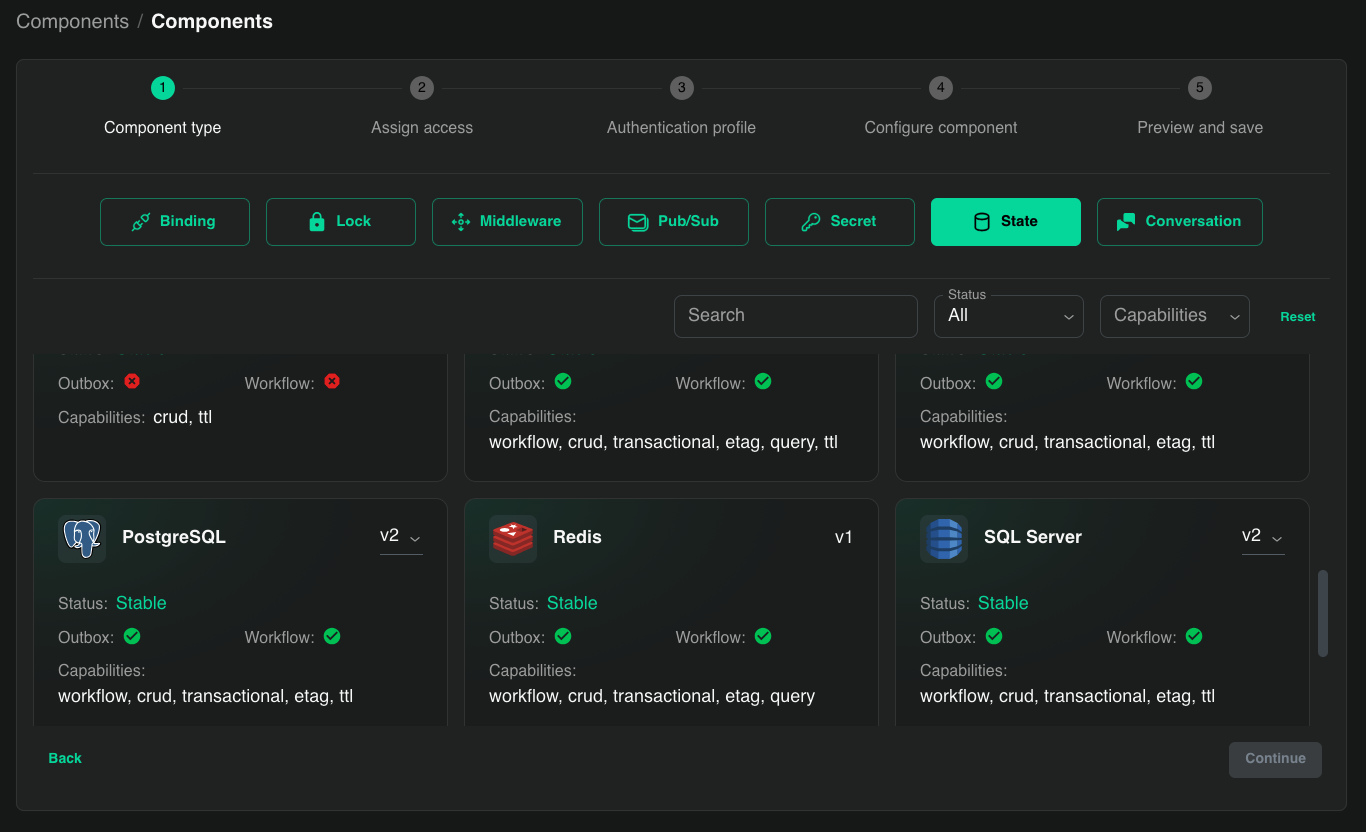
Register your state store as a
statecomponent with theactorStateStoremetadata field set totrue— this is what designates it as the store backing the workflow engine.In the Catalyst console, open the project's Components section and create the component. Pick the State type, then a store whose card shows the Workflow capability — Redis, for example:
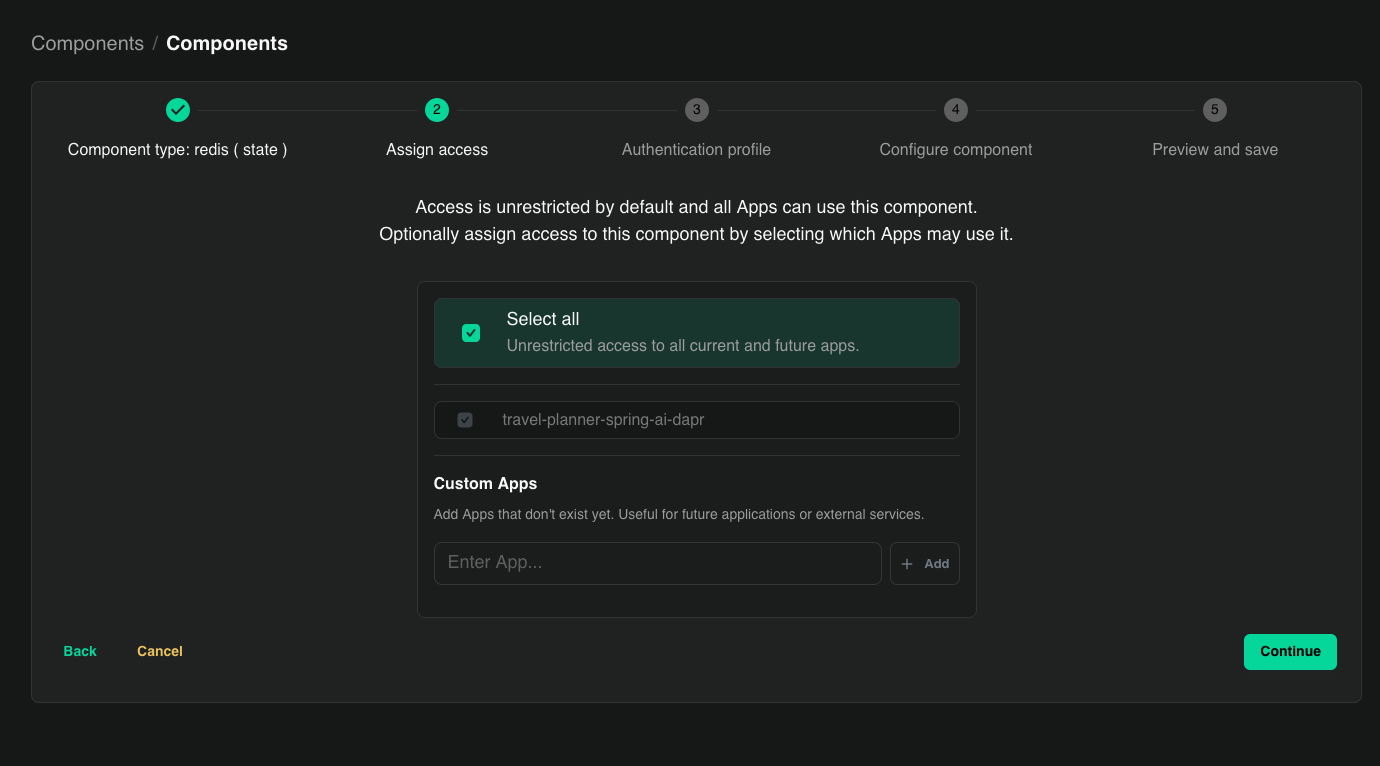
In Assign access, select the workflow apps that may use the store — access is unrestricted by default:
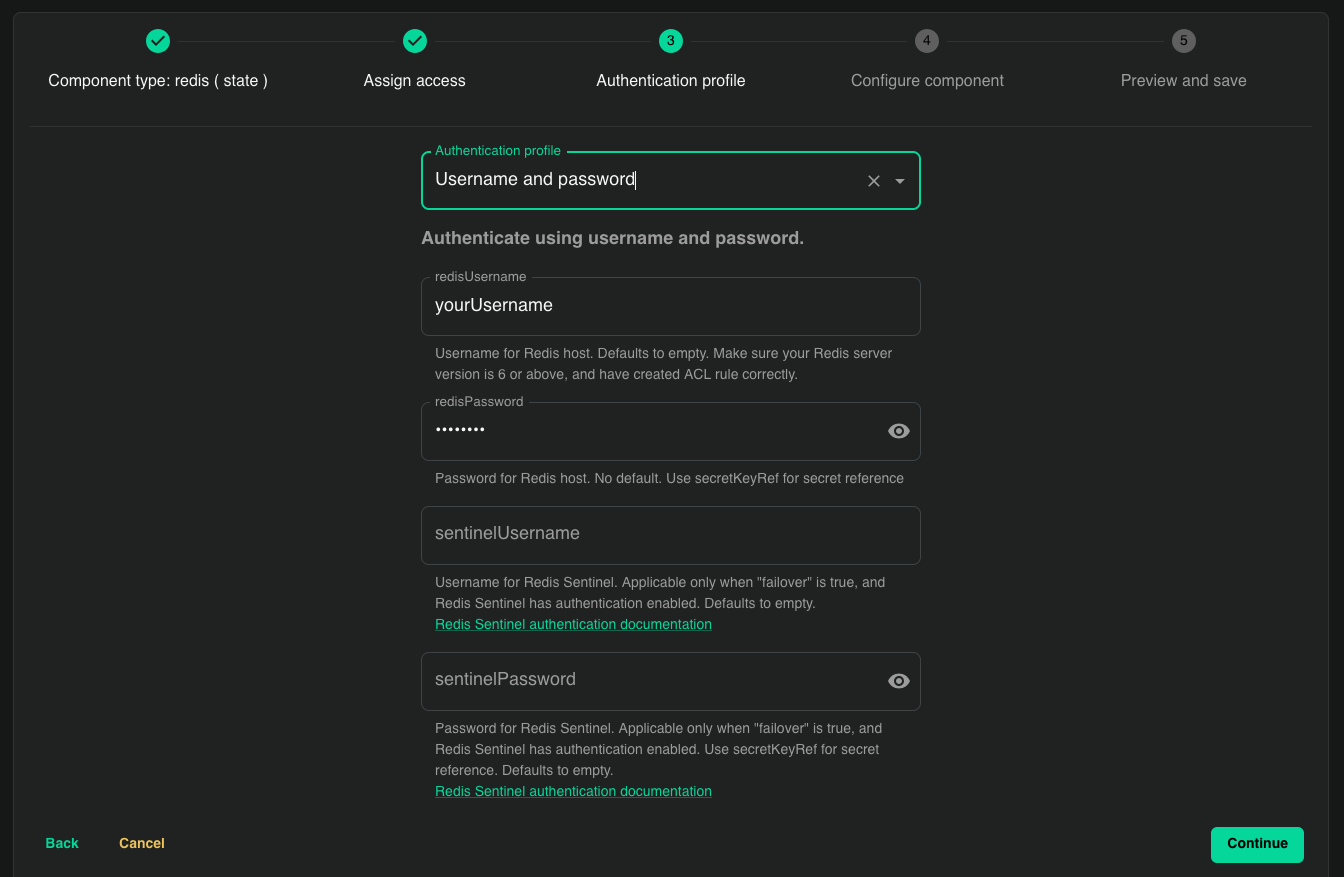
In Authentication profile, choose how to authenticate against the store and enter the credentials — for Redis, a username and password. Sensitive fields are extracted into the managed secret store, never persisted in plaintext:
Then, in Configure component, name the component, enter the store's connection details —
redisHostfor Redis — and add the actorStateStore option with its toggle enabled: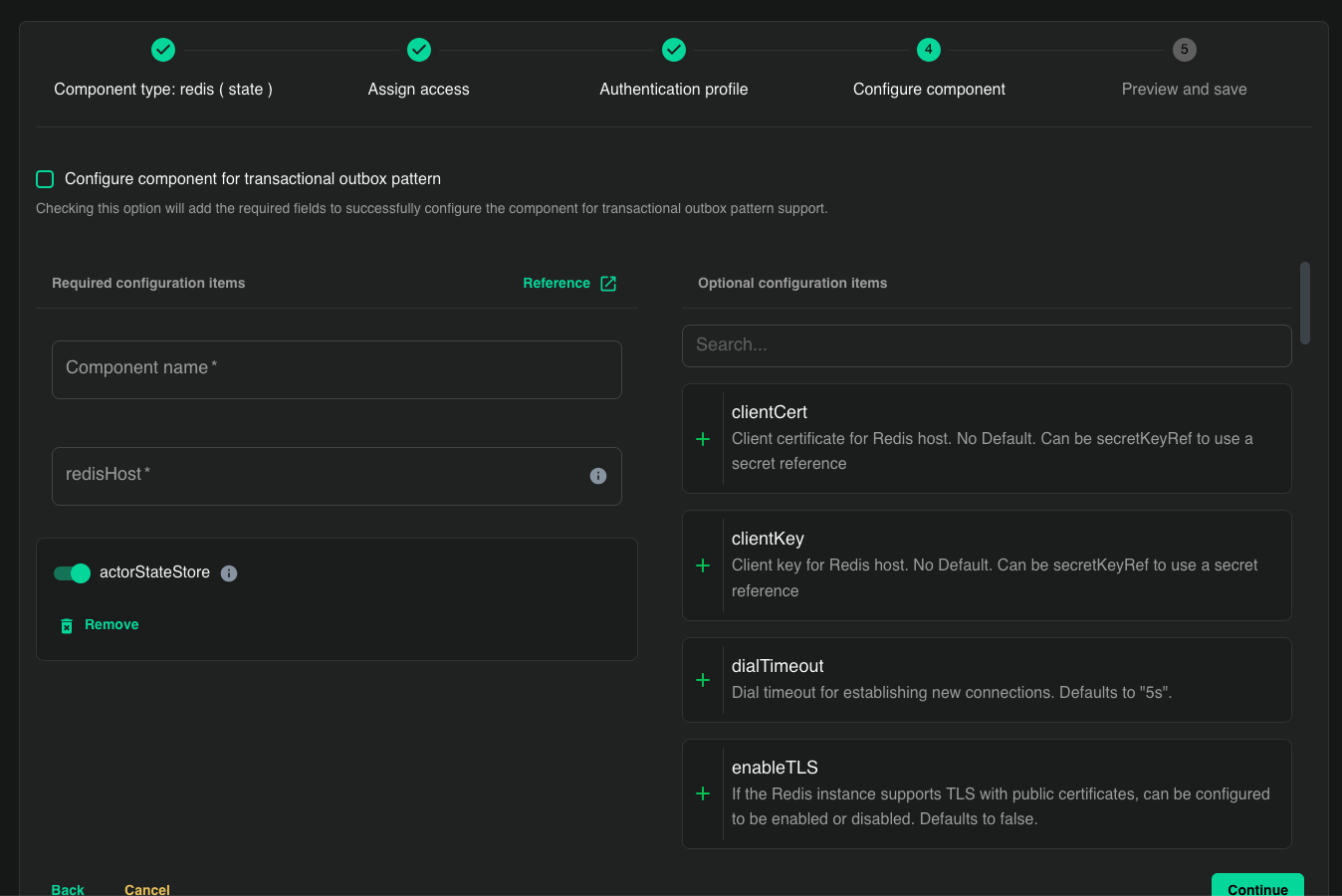
Review the spec in Preview and save and create the component.
The CLI equivalent, with your own Redis:
diagrid component create workflow-store \--type state.redis \--metadata redisHost=my-redis.internal:6379 \--metadata redisPassword=<password> \--metadata actorStateStore=true \--scopes order-workflow \--waitSee the Redis state store reference for the full metadata, and Components for scoping and secret handling.
A project has exactly one workflow state store: you cannot create an actorStateStore=true component while the managed workflow store is enabled, and you cannot create a second one. Signing makes tampering detectable, but it does not protect against data loss — so operate the store with the durability and backups the audit trail warrants.
Limits and quotas
Limits apply to the resources a project contains — the number of workloads, components, pub/sub subscriptions, managed service data size, and request rate. They are counted per region, not per project: each region maintains its own independent quotas, so resources in different regions don't affect each other's limits. Cloud regions have lower limits than dedicated or BYOC regions — compare the limits per Catalyst Cloud region with the limits per dedicated or BYOC region.
The request-rate limit applies per App ID, and body-size limits are set per app — see Manage IDs for the --max-body-size flag and related controls.
What's next
- Manage IDs — register workloads inside a project.
- Manage Components — wire up backing infrastructure.
- Managed services — use built-in Pub/Sub, KV, and Workflow stores.
- Connect to Catalyst — project endpoints, apps, and callbacks.
