Local Workflow Dashboard
When you're developing Dapr workflows and durable agents locally, you probably want to inspect the underlying workflow state and the historical execution data. For this you can use the Diagrid Dashboard. The dashboard runs locally as a container and is powered by the data stored in your local actor state store.
Download & run the Diagrid Dashboard
Prerequisites
- A local container runtime such as Docker Desktop or Podman Desktop.
Run the container
Depending on which state store you use, follow these instructions to download and run the dashboard.
- Redis
- Other state stores
If you use the default Redis state store that gets installed with the Dapr CLI, you download and run the Diagrid dashboard as follows:
docker run -p 8080:8080 ghcr.io/diagridio/diagrid-dashboard:latest
If you don't use the default Redis store for your Dapr workflows, but use Postgres or SQLite, you need to add a volume mapping that maps your local state store component file to a custom state component file inside the container, and specify the COMPONENT_FILE environment variable to point to that custom state component file:
- Bash
- PowerShell
docker run -p 8080:8080 \
 -v ./RESOURCES_PATH/STATE_COMPONENT.yaml:/app/components/custom_state.yaml \
 -e COMPONENT_FILE=/app/components/custom_state.yaml \
 ghcr.io/diagridio/diagrid-dashboard:latest
Where ./RESOURCES_PATH/STATE_COMPONENT.yaml points to a local state store component file.
Example for a local ./resources/state_postgres.yaml state component:
docker run -p 8080:8080 \
 -v ./resources/state_postgres.yaml:/app/components/custom_state.yaml \
 -e COMPONENT_FILE=/app/components/custom_state.yaml \
 ghcr.io/diagridio/diagrid-dashboard:latest
docker run -p 8080:8080 `
 -v .\RESOURCES_PATH\STATE_COMPONENT.yaml:/app/components/custom_state.yaml `
 -e COMPONENT_FILE=/app/components/custom_state.yaml `
 ghcr.io/diagridio/diagrid-dashboard:latest
Where .\RESOURCES_PATH\STATE_COMPONENT.yaml points to a local state store component file.
Example for a local .\resources\state_postgres.yaml state component:
docker run -p 8080:8080 `
 -v .\resources\state_postgres.yaml:/app/components/custom_state.yaml `
 -e COMPONENT_FILE=/app/components/custom_state.yaml `
 ghcr.io/diagridio/diagrid-dashboard:latest
The terminal will show some logging output including:
level=info msg="starting diagrid-dashboard restservice server on 0.0.0.0:8080
Once the container is running, open the Diagrid Dashboard in the browser at http://localhost:8080/.
Run with Docker Compose
If you prefer to manage the Diagrid Dashboard as part of a Docker Compose stack, create the following two files in the same directory.
Create a state.yaml file containing the Dapr state store component definition:
apiVersion: dapr.io/v1alpha1
kind: Component
metadata:
  name: statestore
spec:
  type: state.redis
  version: v1
  metadata:
  - name: redisHost
    value: host.docker.internal:6379
  - name: redisPassword
    value: ""
  - name: keyPrefix
    value: none
  - name: actorStateStore
    value: "true"
Create a docker-compose.yaml file that runs the dashboard and mounts the component file:
services:
  diagrid-dashboard:
    image: ghcr.io/diagridio/diagrid-dashboard:latest
    ports:
      - "8080:8080"
    environment:
      - COMPONENT_FILE=/app/components/state.yaml
    volumes:
      - ./state.yaml:/app/components/state.yaml:ro
Start the dashboard with:
docker compose up
Once running, open the Diagrid Dashboard in the browser at http://localhost:8080/.
Run in a local Kind cluster
If you develop your Dapr workflows in a local Kind cluster, you can deploy the Diagrid Dashboard as a Kubernetes workload alongside your workflow application.
Prerequisites
- Kind and kubectl installed.
- A running Kind cluster with Dapr installed and a Redis state store available in the cluster. This guide assumes a
redis-masterservice on port6379in thedefaultnamespace.
Create a Kind cluster with port mapping
So the dashboard is reachable from your host machine, create a cluster that maps a NodePort to a local port. Create a kind-config.yaml file:
kind: Cluster
apiVersion: kind.x-k8s.io/v1alpha4
nodes:
  - role: control-plane
    extraPortMappings:
      - containerPort: 30080
        hostPort: 8080
        protocol: TCP
Create the cluster:
kind create cluster --config kind-config.yaml
Deploy the Diagrid Dashboard
Create a diagrid-dashboard.yaml manifest. It contains a ConfigMap with the Dapr state store component, a Deployment that runs the dashboard container and mounts the component file, and a Service that exposes the dashboard on NodePort 30080:
apiVersion: v1
kind: ConfigMap
metadata:
  name: diagrid-dashboard-state
  namespace: default
data:
  state.yaml: |
    apiVersion: dapr.io/v1alpha1
    kind: Component
    metadata:
      name: statestore
      namespace: default
    spec:
      type: state.redis
      version: v1
      metadata:
      - name: redisHost
        value: redis-master.default.svc.cluster.local:6379
      - name: redisPassword
        value: ""
      - name: keyPrefix
        value: none
      - name: actorStateStore
        value: "true"
---
apiVersion: apps/v1
kind: Deployment
metadata:
  name: diagrid-dashboard
  namespace: default
spec:
  replicas: 1
  selector:
    matchLabels:
      app: diagrid-dashboard
  template:
    metadata:
      labels:
        app: diagrid-dashboard
    spec:
      containers:
      - name: diagrid-dashboard
        image: ghcr.io/diagridio/diagrid-dashboard:latest
        imagePullPolicy: IfNotPresent
        env:
        - name: COMPONENT_FILE
          value: /app/components/state.yaml
        ports:
        - containerPort: 8080
          name: http
        volumeMounts:
        - name: state-component
          mountPath: /app/components
          readOnly: true
      volumes:
      - name: state-component
        configMap:
          name: diagrid-dashboard-state
---
apiVersion: v1
kind: Service
metadata:
  name: diagrid-dashboard
  namespace: default
spec:
  type: NodePort
  ports:
  - port: 8080
    targetPort: 8080
    nodePort: 30080
    protocol: TCP
    name: http
  selector:
    app: diagrid-dashboard
Adjust the redisHost and redisPassword values to match the Redis service in your cluster.
Apply the manifest:
kubectl apply -f diagrid-dashboard.yaml
Once the pod is running, open the Diagrid Dashboard in the browser at http://localhost:8080/.
Using the Diagrid Dashboard
Once the dashboard is running, start your Dapr workflow application as you normally would, via an IDE or via the Dapr CLI, and use the workflow management API to schedule a new workflow instance.
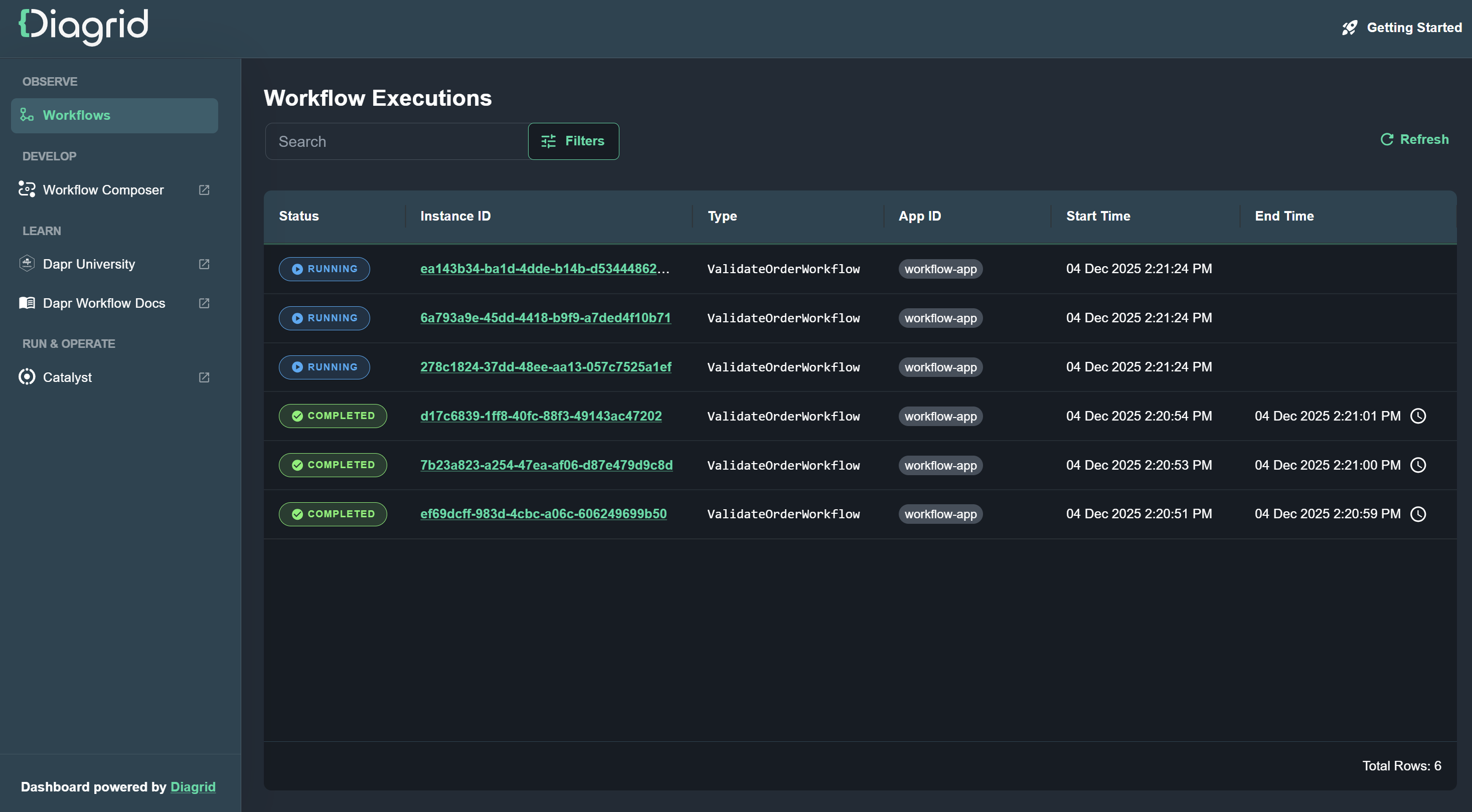
Once a workflow instance is running you will see it in the dashboard:
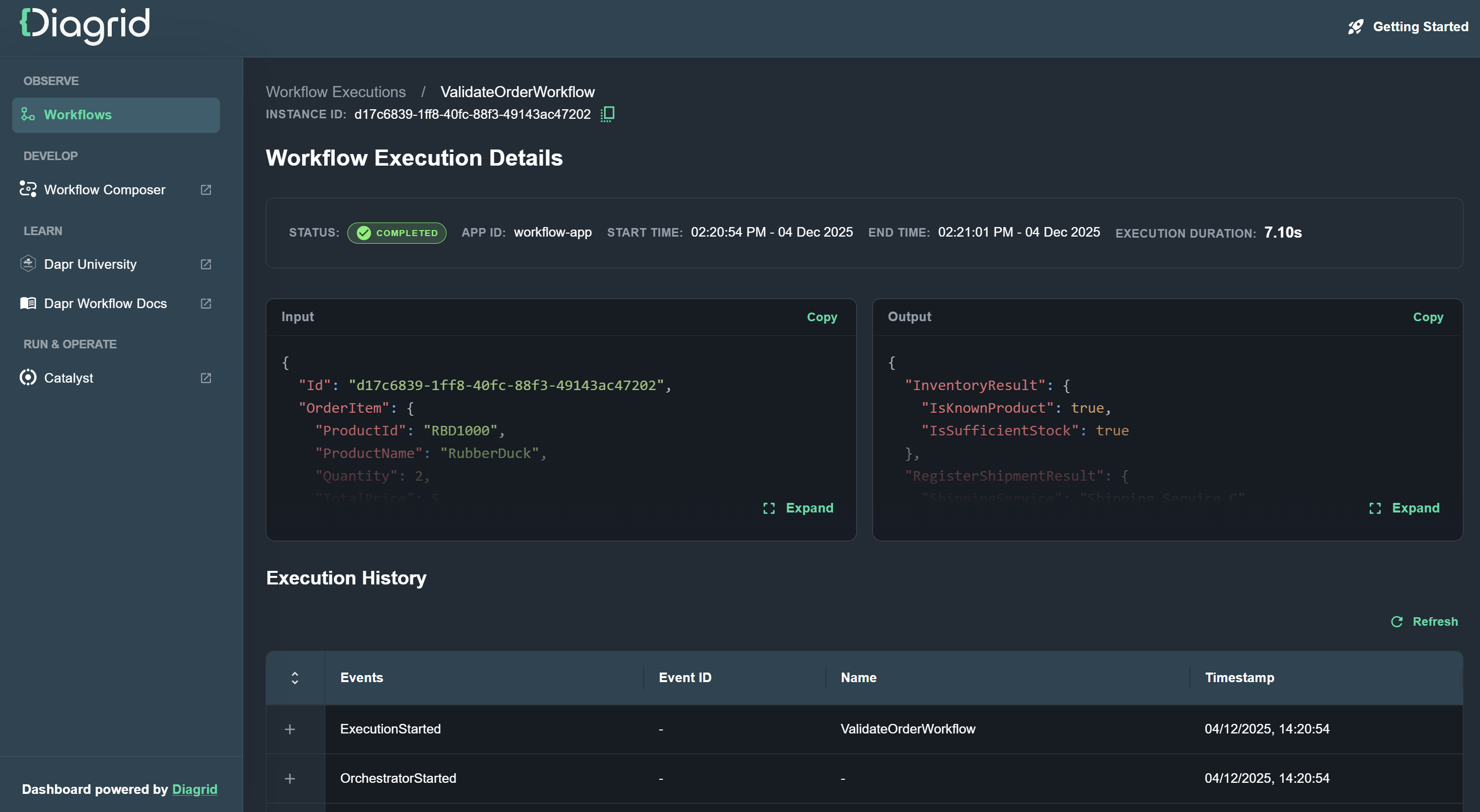
Click on the Instance ID of a workflow instance to drill down to inspect the workflow execution details, including input, output and historical data:
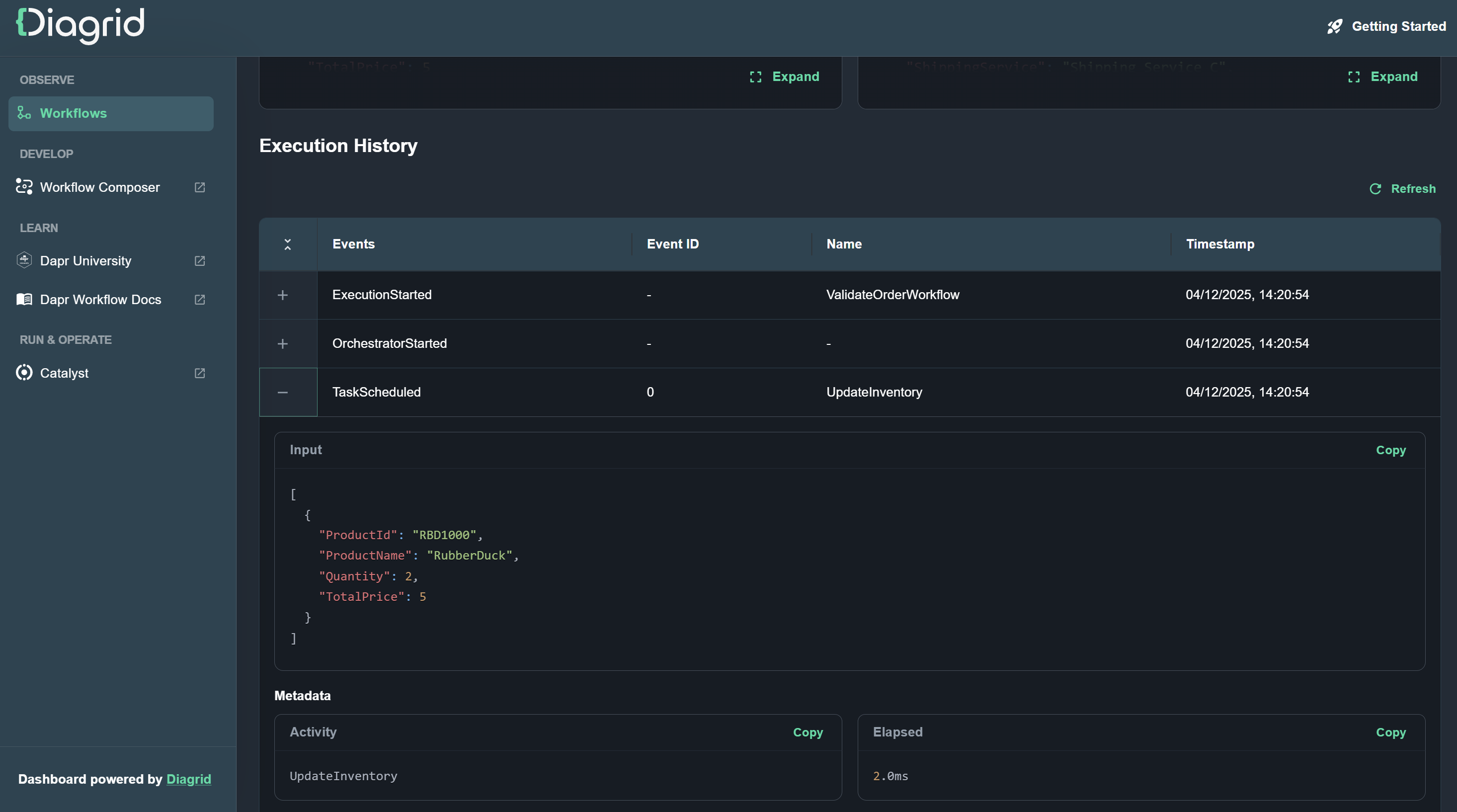
Expand workflow events in the Execution History table to see the details of that workflow step:
Update the dashboard
Update the Diagrid dashboard image by running:
docker image pull ghcr.io/diagridio/diagrid-dashboard:latest
Limitations
- Currently, the Diagrid Dashboard only supports the following local state stores:
- Redis (automatic connection)
- Postgres (manual configuration)
- SQLite (manual configuration)
- This dashboard is intended for local use only. If you need workflow insights for other environments use Catalyst.
Troubleshooting
-
If you get a
Error response from daemon: Head "https://ghcr.io/v2/diagridio/diagrid-dashboard/manifests/latest": denied: deniederror, logout of theghcr.ioregistry usingdocker logout ghcr.io, and try thedocker runcommand again. -
If you get a
panic: failed to ping the database: failed to connect to...error, please check the connection string in the state store component. Try changing it fromlocalhosttohost.docker.internal.
Feedback
We love to hear about your experience using the Diagrid Dashboard! Please join our Discord server and share your feedback.